Study before scrolling on Android
Pair a deck you are studying with an app you open every day. FlashLock puts a few cards before that app, so your usual phone routine becomes a prompt to review.
A simple example: Spanish before Instagram
Add your Spanish deck, choose Instagram and start with three cards per break. When the break appears, try each answer, reveal it and finish the review before continuing. Three is a starting suggestion, not a required setting.
Set up your first break
- Add the material you actually need. Create a deck or import an Anki file. Check its questions and answers. Starter trivia is only a sample; it is not a substitute for your study deck.
- Choose your deck and one daily app. Select the study deck on Home, then choose the app you want a break before. Set a small card count and adjust the timing to suit your routine.
- Enable the required access. Follow FlashLock’s prompts for Accessibility and Usage Access. Read Android’s confirmation, enable FlashLock, then return to setup. Menu names vary by phone; use the in-app setup help when they differ.
- Choose the optional settings. Notifications, background-access guidance and app-usage sharing are separate choices. Usage sharing is not required to study. Review the battery guidance if your phone stops FlashLock in the background.
- Try the actual app. Finish setup, make sure blocking is enabled, and open the app you selected. Check that your own deck appears, not just the practice cards shown during setup.
See the deck and app screens
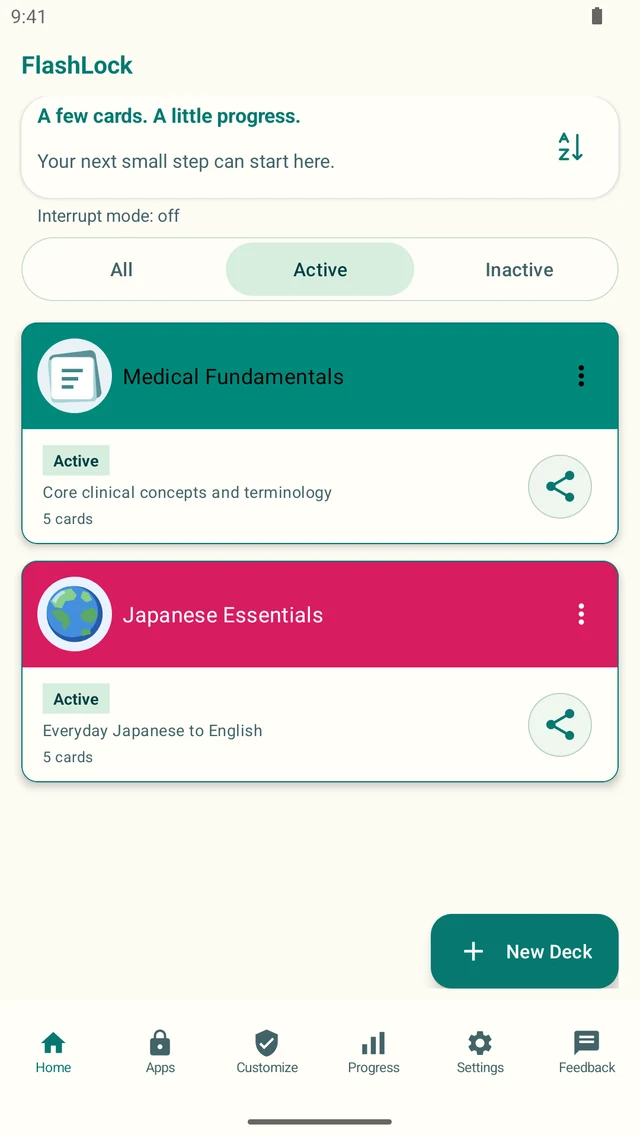
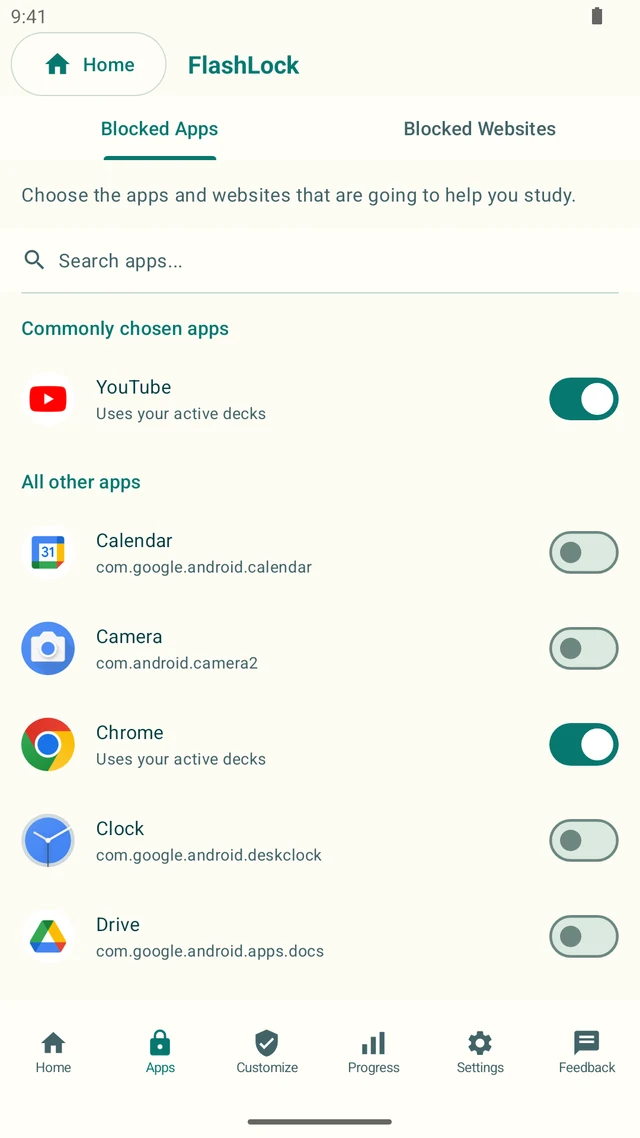
Examples from FlashLock’s Google Play listing, checked 30 October 2026. Screens can vary by version.
If the break does not appear
- Check your choices: the app is selected, a usable deck is selected, and blocking or the schedule is not paused.
- Check the timing: a cooldown or scheduled break may mean cards do not appear on every opening.
- Check Android access: revisit Accessibility and Usage Access. If FlashLock is enabled but disconnected, turn its Accessibility service off and on, then return.
- Check background restrictions: use your phone’s app/battery settings and FlashLock’s setup help. No single manufacturer menu fits every Android phone.
Keep the routine useful
Need help making room for study? Start with the phone distraction plan, a focused Instagram routine or study habits that survive busy days.
Start with one app and a small, relevant deck. For medicine, build the cards around your course. To compare a study break with a full blocker, see FlashLock vs AppBlock.
Read how FlashLock handles permissions and study data.
By the FlashLock team · Reviewed 6 November 2026. Setup labels can vary by installed version.